

Installation Guide
Get started with MobieArk in under 3 minutes. Installation time: 1-2 minutes
- 1
Download MobieArk
Click Free Download on the MobieArk website. The installer download starts automatically.
- 2
Open MobieArk Installation File
Open your Downloads folder and double-click the MobieArk installer.
- 3
Install MobieArk
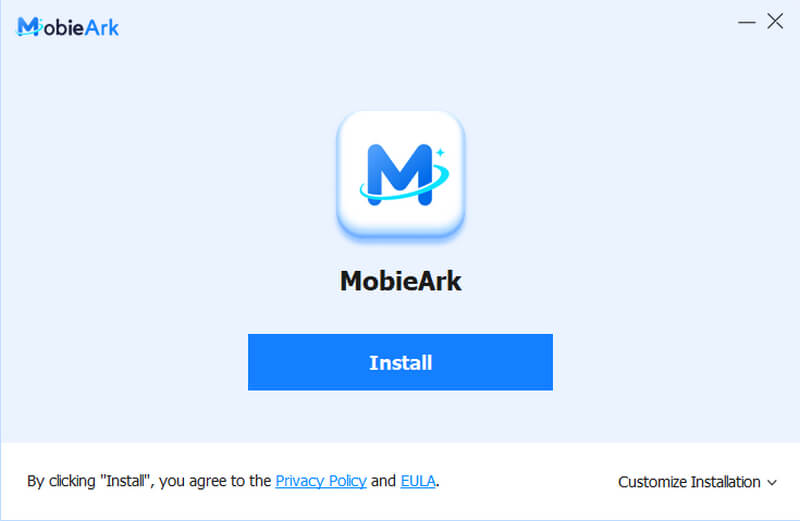
Click Install. MobieArk installs to your default program directory. You can choose the destination before installation starts.
- 4
Launch MobieArk
When the installation finishes, click Start Now to open the program. You can also launch it later from the desktop shortcut or the Start menu.

- 5
Login or Signup
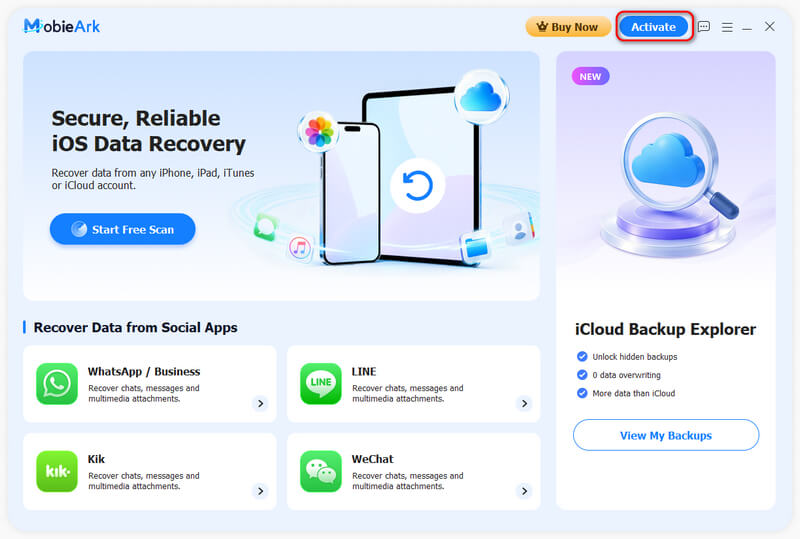
Click Activate in the top bar. Log in or sign up with your email. If you have purchased a license with that email, the benefit will be automatically activated and bound to your device.
Recover Lost iOS Data with MobieArk
- 1
Select Recovery Mode
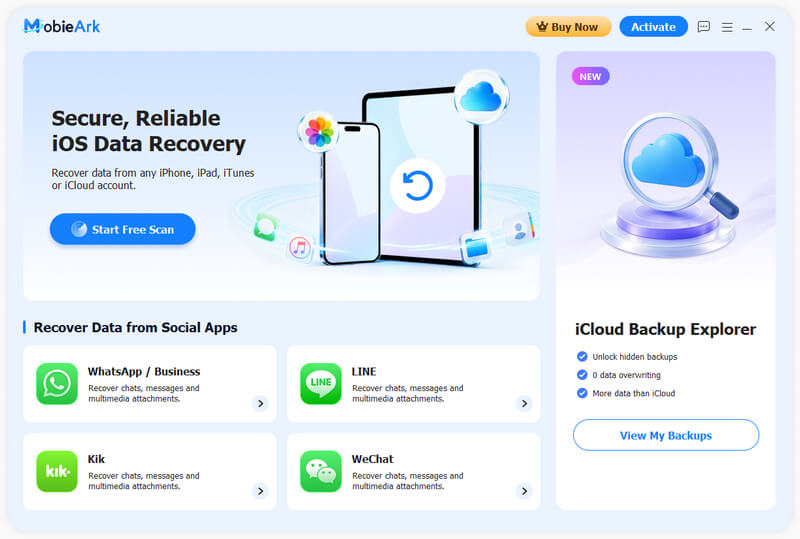
Launch MobieArk. On the home screen, click iOS Data Recovery or the exact app you want to recover lost data from.
- 2
Select Data Type
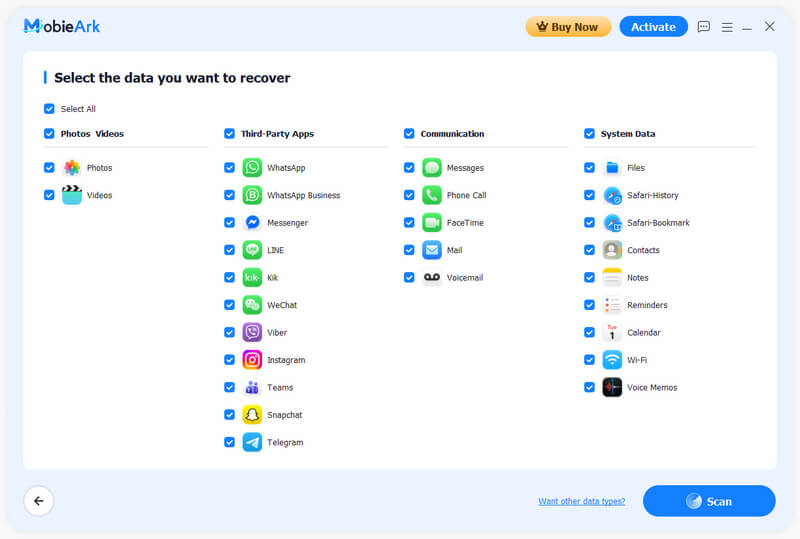
Choose the data type from the list. If you chose an app in the last step, the matching option is selected in preset. Click the Scan button when you finish.
- 3
Sign in with Your Apple Account
If you are running MobieArk for the first time, you are required to sign in with the Apple Account. Follow the on screen guide and continue.
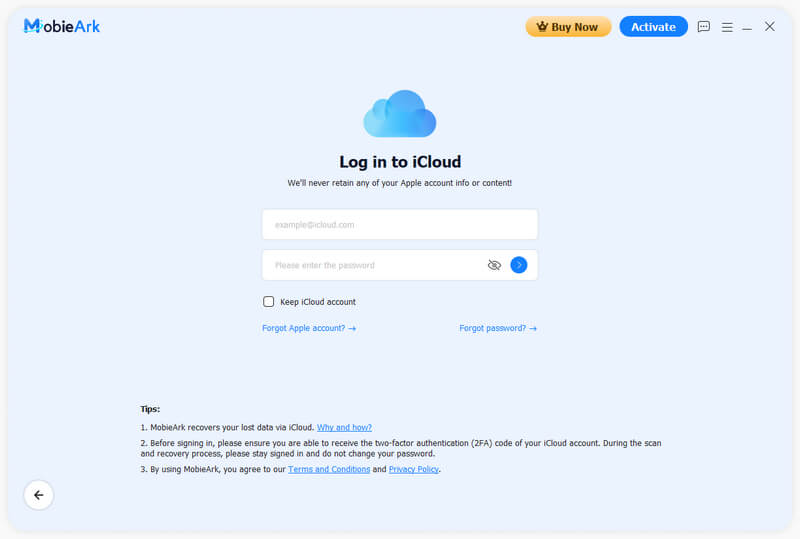
Need help signing in with your Apple ID?
- 4
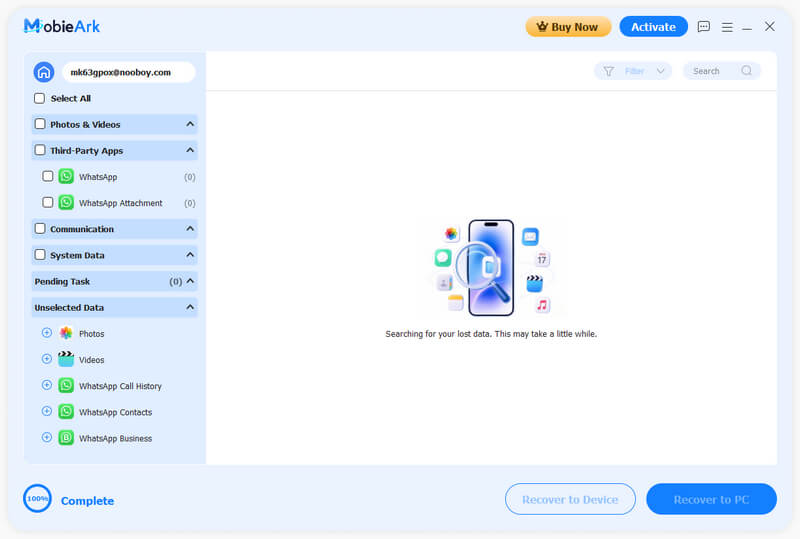
Run a Free Deep Scan
Click Scan and let the deep scan work through device storage. The scan time may vary depending on your data size, you can keep using your iPhone while it runs.
- 5
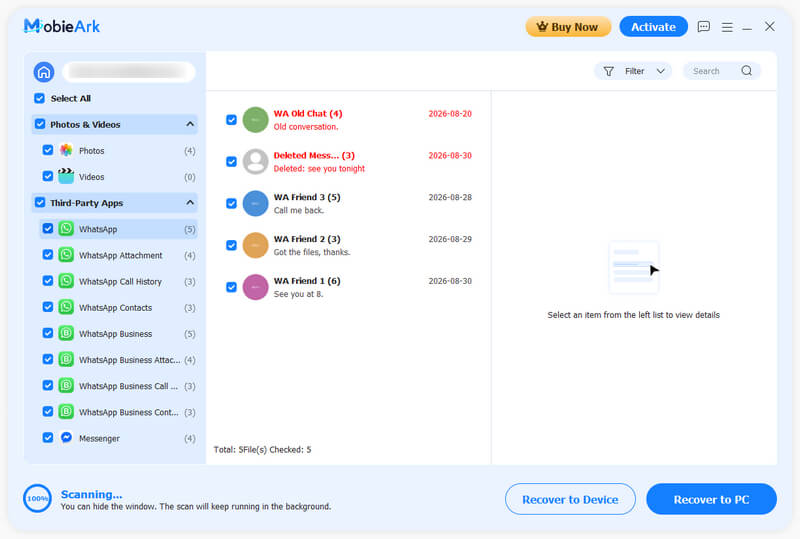
Preview and Recovery
Expand any category to preview the contents of the found files. This preview is completely free, so you know exactly what is recoverable before paying. Then, tick the items you want, click Recover, and choose a folder on your computer.
Recover from iCloud Backup
- 1
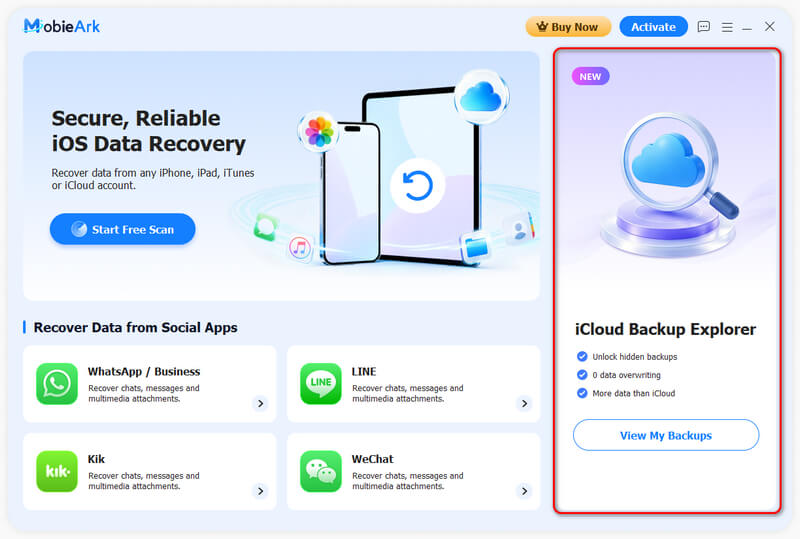
Open the Backup Recovery Mode
Launch MobieArk and choose Recover from iCloud Backup.
- 2
Sign in with Your Apple Account
For security, enter the 6-digit verification code sent to your trusted device.
- 3
Scan and Review Backup Points
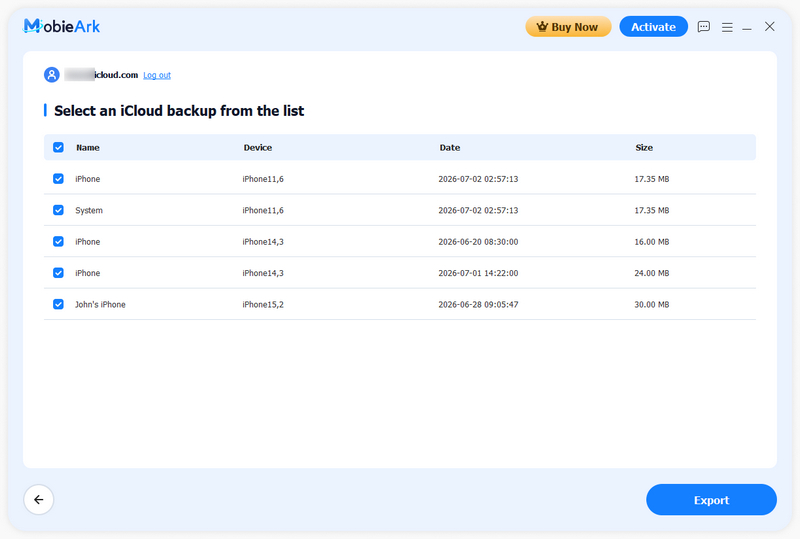
View all available iCloud backups with device name, date, and file size — completely free. This helps you identify the most relevant backup before deciding to proceed.
- 4
Select & Export Backup
Select the backup(s) you want to extract. The info icon explains what's included: basic iCloud data (photos, contacts, notes) plus app-specific data like WhatsApp chats.
Frequently Asked Questions
-
Do I need to jailbreak my iPhone to recover data?
No. MobieArk works on non-jailbroken devices and supports all recent iOS versions. Jailbreaking is neither required nor recommended, and the software never modifies your iOS firmware.
-
Can I recover data without my iPhone?
Yes. The iCloud recovery mode works entirely remotely — you only need the Apple ID used on the device. This is the method to use when your iPhone is lost, stolen, broken or will not power on.
-
Is it safe to use? What happens to my Apple ID and data?
All scanning and recovery runs locally on your computer; your data is never uploaded to us. Apple ID sign-in is handled through Apple's official authentication flow, so MobieArk never sees or stores your password, and the connection is protected with 256-bit SSL encryption.
-
Can you recover data that was deleted more than 30 days ago?
Yes. Apple's built-in recovery window is limited to 30 days, but MobieArk's deep scan reaches further back, including data that appears permanently deleted — and it can recover items deleted over 30 days ago.